OCR automation: how data from scanned documents gets into your systems
For operations teams that still retype data from scans and email attachments. Follow one scanned utility bill from the inbox to the accounting system, and see what still needs a person.

Key takeaways
- OCR automation reads scanned documents and puts the data into your systems, so nobody has to retype it.
- OCR gives you the text and its position on the page. Finding the fields you need, such as the account number or the total, is a separate step.
- Checks decide what a person sees. A field goes to a person when it fails a rule. It also goes to a person when the software is less sure of it than the level you set.
- Data can reach your system by API, by file import or through an RPA bot. Use the route your system accepts.
- Track the share of documents no person had to work on, and the fields people had to fix.
On this page
- What is OCR in automation?
- Follow one scanned utility bill from the inbox to your system
- The four stages, and what goes wrong at each
- The checks that decide what a person sees
- How the data gets into your system
- What Docsumo does at each stage
- How to tell if OCR automation is working
- What changes for the people who type in data today
- Frequently asked questions
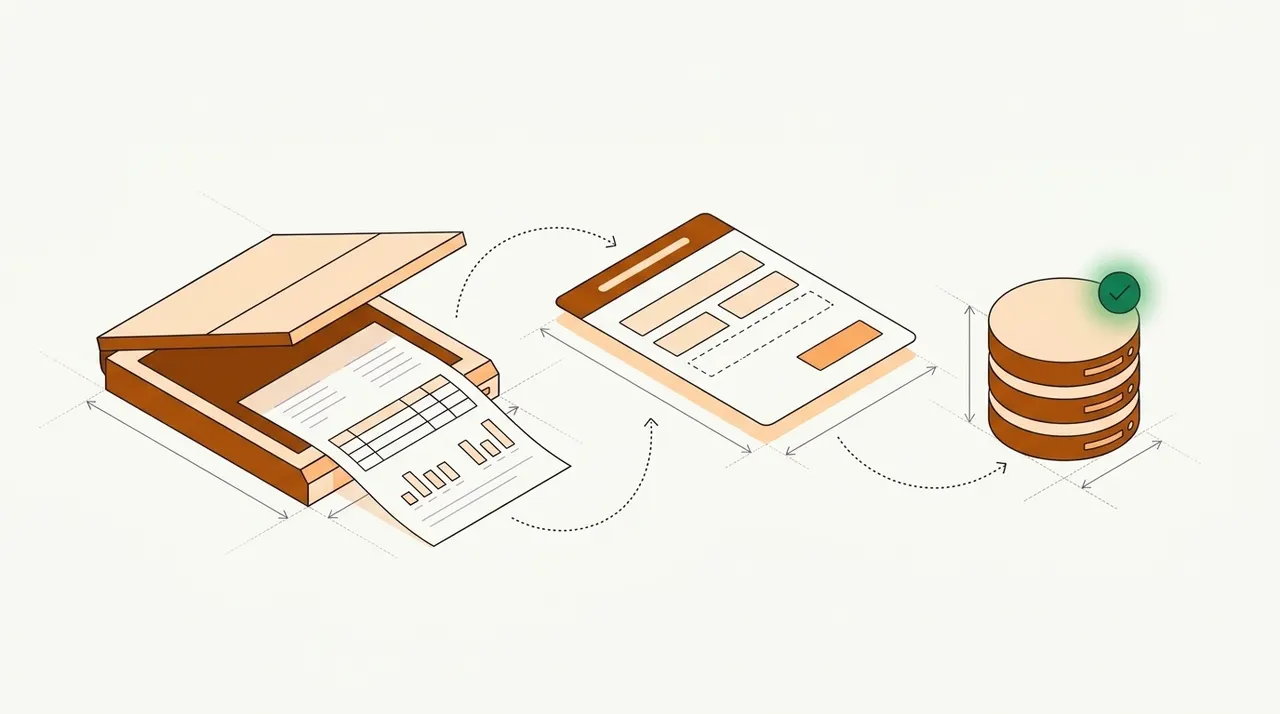
OCR automation reads scanned documents and puts the data into your systems, so nobody has to retype it. OCR turns the image of each page into text. The software finds each field in that text and checks the field. Then the software sends the checked data to the system that uses it, such as your accounting system. People see only the fields that fail a check.
What is OCR in automation?#
OCR stands for optical character recognition. It turns an image of text, such as a scanned page, into text a computer can use. On its own, OCR gives you characters and their position on the page. It doesn't know which number is the total due. What is OCR explains how the reading works.
OCR automation adds the steps around the reading. Documents come in and get sorted. The software turns the text into named fields, such as the account number and the total. Then it checks those fields and sends the checked data into a system. The step from raw text to named fields is called data extraction. OCR data extraction covers its methods. Software that does all of these steps, not only the reading, is called intelligent document processing (IDP). IDP vs OCR compares IDP with OCR on its own.
In robotic process automation (RPA), "OCR automation" can mean something else. RPA software runs bots that click and type in other programs the way a person would. A bot uses OCR to read text on a screen when it can't reach the program directly. That's common with Citrix and other remote desktops, because they send only an image of the screen. This article is about documents, not screens. RPA vs AI for document processing covers how bots and document AI share the work.
Follow one scanned utility bill from the inbox to your system#
Our example is the September bill that Riverbend Electric & Gas sent to Maple Court Apartments LLC. It arrives as a 3-page scanned PDF in the inbox of the team that pays the property's bills.
| Field | Extracted value | Confidence |
|---|---|---|
| Provider | Riverbend Electric & Gas | |
| Customer name | Maple Court Apartments LLC | |
| Account number | 3108-5572-40 | |
| Service address | 2150 Maple Ct, Columbus, OH 43215 | |
| Billing period | 2026-08-05 → 2026-09-03 | |
| Issue and due date | 2026-09-08 · 2026-09-29 |
| Field | Extracted value | Confidence |
|---|---|---|
| Previous balance | 1,742.30 | |
| Payment received | −1,742.30 | |
| Charges before tax | 1,719.86 | |
| Taxes and fees | 98.89 | |
| Current charges | 1,818.75 | |
| Total amount due | 1,818.75 |
| Field | Extracted value | Confidence |
|---|---|---|
| E-5520871 · electric | 9,420 kWh · 38.6 kW demand | |
| E-5520904 · electric | 1,080 kWh | |
| G-3317265 · gas | 194 CCF | |
| Reads · E-5520871 | 48,210 → 57,630 | |
| Tariff · E-5520871 | GS-2 General Service | |
| Supply rate · E-5520871 | $0.0912 / kWh |
Intake comes first. The software recognizes the file as a utility bill, so it knows which fields to look for. The file holds only one bill, so nothing needs splitting. OCR then reads all 3 pages. Next, the software turns the text into named fields, such as the account number, the billing period and the total due. For each meter, it also finds the start and end readings, the usage and the charges.
The checks come next. For each meter, the end reading minus the start reading must equal the usage. On meter E-5520871, 57,630 minus 48,210 is 9,420 kWh. The charges on the 3 meters must add up to $1,719.86 before tax. That amount plus $98.89 in taxes and fees must equal the $1,818.75 in current charges. The last bill was paid in full, so $1,818.75 is also the total due.
Each value also gets a confidence score, which shows how sure the software is that it read the value correctly. You set a minimum score for each field, called its threshold. A value that scores below its threshold goes to a person.
One more check compares the price with the contract. The team keeps its contract rates in a table, and a lookup finds the rate for this account. The bill charges $0.0912 per kWh on meter E-5520871, and the contract rate is $0.0845. The billed rate is 7.9% higher, which adds $63.11 to this bill. So the bill goes to a person, who sees both rates side by side. In Docsumo, lookups like this are on the Enterprise plan.
Last comes the export. Once the person has checked the rate, the data goes into the property's accounting system. Each meter's charges go in on a separate line. Nobody typed the bill. One person looked at one number.
Our take. Don't start with every document you receive. Start with one type that arrives in large numbers and that someone has to act on. Invoices in AP and bank statements in lending are good examples. Get that type into your system with no typing, and count how often a person still has to work on a document. Most of what you set up for it, from intake to export, works for the next type too.
The four stages, and what goes wrong at each#
Every OCR automation setup has the same four stages, whatever the document. Each stage fails in a few known ways, so plan for them from the start.
- Email attachments
- Scanned batches
- Uploads and API
- 01Take in and sort
- 02Read and find fields
- 03Check each field
- 04Export
| Stage | What goes wrong | What to set up |
|---|---|---|
| Intake | Several documents arrive in one PDF, or a document type arrives that nobody set up. | Splitting for combined files, and a queue for documents that can't be sorted. |
| Reading and finding fields | Faint scans, handwriting, and tables that continue on the next page. | Tests on your worst scans, and a check that a table across pages comes out as one table. |
| Checks | The software reads a value clearly, but the value is wrong, such as a total that doesn't match the sum of its lines. | Math and lookup rules, in addition to the confidence threshold. |
| Export | The system rejects a field's format, or the same document gets posted twice. | A map from each field to the matching field and format in your system, and a duplicate check before posting. |
The checks that decide what a person sees#
A confidence score only shows how sure the software is about its reading. It can't tell you whether the value makes sense. A clearly printed total can still be the wrong total. So a field should go straight through only when it passes every check that applies to it.
- Confidence above the field's thresholdSet a threshold for each field. Amounts and account numbers need a higher threshold than a description does.
- Required fields filled inA document with no invoice, loan or claim number can't be posted or matched.
- The math on the pageThe lines add up to the subtotal, and the subtotal, tax and freight add up to the total.
- Lookups in your own recordsThe vendor is in your vendor list, and the PO number belongs to an open order.
- No duplicateThe same vendor and invoice number haven't been posted already.
- Agreement with other documentsAn invoice matches its purchase order and receipt. A pay stub's net pay matches the deposit on the bank statement.
When a field fails, the reviewer should see which check failed and where the value sits on the page. Then they can fix it without searching through the PDF.
How the data gets into your system#
Whether anyone still has to type depends on the last step, which sends the checked data into your system. The right route depends on how your system takes in new records.
How does your system take in new records?
What Docsumo does at each stage#
Documents reach Docsumo by upload, by email or through the API. Docsumo has an inbox for emails, so attachments from a shared AP or claims mailbox can go straight to it. On the Business plan, Docsumo sorts each file by document type (auto-classification) and splits a combined PDF into separate documents. If Docsumo can't classify a document, the document waits as Unclassified until a person assigns its type.
Docsumo reads printed and handwritten text. It comes with models already trained on 250+ document types. For any other type, it uses large language models (LLMs) to turn the text into fields. When a table continues onto the next page, Docsumo joins the parts into one table. It also maps the document's column headers to your own column names. Utility bill data extraction shows every field it returns from a bill like the one above.
- 99%field-level accuracy on 250+ document types
- 95%+of documents processed straight through, without manual review
- 99%+of invoices processed touchless at Valtatech
You set a confidence threshold for each field. If a field's confidence score is below its threshold, the field goes to a person. When the reviewer clicks that field, Docsumo highlights the line in the document where the value came from. Reviewer corrections improve the model.
You can add your own checks as steps in the workflow. One example is a rule that the charges on a bill add up to its total. Docsumo also flags an invoice that duplicates one already received. On the Enterprise plan, master data lookup checks values against your own records, and cross-document validation checks one document against another. Matching invoices to POs and receipts is also on the Enterprise plan. Accounts payable automation shows how that matching works.
Checked data goes to your systems through the API and webhooks, and it can also be downloaded to Excel. Docsumo is cloud only. It isn't a desktop tool for editing PDFs or making searchable files. It supplies the software, not a review team, so your own staff handle the fields that need a person.
How to tell if OCR automation is working#
Count documents, not pages. The main number is the share of documents that no person touched. It's called the straight-through processing (STP) rate. Count a document as touched if anyone opened it to fix, check or type a value before it went into your system. At 10,000 documents a month with 1,200 touched, the STP rate is 88%.
Then look at the fields people fixed. If one field causes most of the fixes, start there. A lookup in your own records or a format rule may fix it with no person involved. Also check a sample of the documents that went straight through. If a field's wrong values went through without review, raise the threshold for that field. OCR accuracy explains how to measure accuracy by character, word and field.
What changes for the people who type in data today#
They stop typing and start checking. Their main job becomes the review queue, which holds only the fields that failed a check. They also know which vendors and forms cause trouble, so they're the right people to set the first thresholds and rules. Ask them to pick the documents for your first test.
Book a demo with a week of your own documents, or start a free trial.
Frequently asked questions#
What is OCR in automation?
OCR stands for optical character recognition. In automation, it's the step that reads the text on a scanned page or photo. Other steps then find the fields and check them before the data goes into a system, so nobody types it. In robotic process automation (RPA), where software bots click and type in other programs, OCR can also mean a bot reading text on a screen.
Can ChatGPT perform OCR?
Yes. ChatGPT can read the text in an image you share with it. OpenAI's developer documentation says OpenAI models that accept images can read the visible text in those images. The same page lists limits, such as rotated text and text that isn't in the Latin alphabet that English uses, like Japanese or Korean. For a steady flow of documents, you also need checks on each field and a way to send the data to your systems.
Is OCR an example of AI?
Usually, yes. OCR is a kind of pattern recognition, and many OCR engines now use machine learning. The open-source Tesseract engine, for example, added a neural network engine in version 4. OCR still only reads characters. Knowing which value is the invoice total takes a further step.
Do you need RPA for OCR automation?
Only when the system you update has no API and no file import. Then an RPA bot can type the checked data into that system's screens. If the system has an API or an import, use that instead. Then you have no bot to fix each time the system's screens change.